How to Set a Static IP Address in Linux
ifconfig is being replaced by the ip command.
Configuring a static IP can be difficult in Linux because it’s different based on the distro and version you’re using. This guide will show you how to configure a static IP address on the most popular Linux distros.
Ubuntu
As of version 17 of Ubuntu, networking is configured using Netplan, which is a YAML-based configuration system. It allows you to set your IP, netmask, gateway, and DNS all in one place.
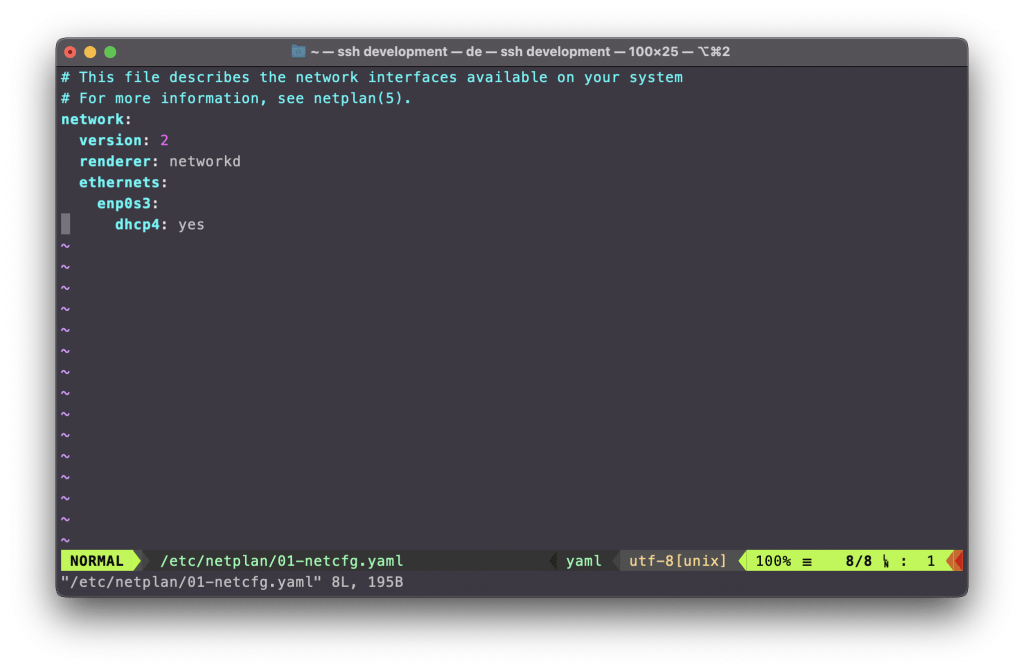
Start by editing the file for your interface: in this case 01-netcfg.yaml.
vi /etc/netplan/01-netcfg.yaml
Editing your interface file
You’ll either see networkd or systemd in the renderer spot; keep that the same.
network:
  version: 2
  renderer: networkd
  ethernets:
    enp0s3:
     dhcp4: no
     addresses: [192.168.2.2/24]
     gateway4: 192.168.1.1
     nameservers:
addresses: [8.8.8.8,8.8.4.4]To have your changes take effect, restart networking with this command:
You can then apply this configuration by running netplan apply.
YAML configs are crazy about indentation, so if you get an error check there first.
netplan apply
CentOS
Now let’s do the same thing in CentOS. Here we’ll need to edit things the old way using sysconfig and network-scripts:
vi /etc/sysconfig/network-scripts/ifcfg-eth0
You’ll change what you see there to something like this:
HWADDR=$SOMETHING
TYPE=Ethernet
BOOTPROTO=none // turns off DHCP
IPADDR=192.168.2.2 // set your IP
PREFIX=24 // subnet mask
GATEWAY=192.168.2.254
DNS1=1.1.1.2 // set your own DNS
DNS2=1.0.0.2
DNS3=9.9.9.9
DEFROUTE=yes
IPV4_FAILURE_FATAL=no
NAME=eth0
DEVICE=eth0
ONBOOT=yes // starts on bootYou can then apply this configuration by running:
/etc/init.d/network restart
Ok, that will get you up and running with a static IP on the two most common Linux distros. Now let’s take a deeper look at the new ip command.
Using ip and netplan
Most Linux nerds have been using ipconfig for a long time, but it’s now being replaced with a new command called ip. Here’s how to do some basic tasks using the new command.
Show your IP using ip
ip addr show
or even shorter and more efficient…
ip a
(both commands show all interfaces)
Show only one interface using ip
ip a show eth0
Bring an interface up or down using ip
ip link set eth1 up
ip link set eth1 down
Only show IPv4 interfaces
ip -4 a
Ok, so now you should know how to set a static IP on both Ubuntu and CentOS, as well as how to get some basic network information using ip instead of ipconfig.
Happy hacking!